
Looking for a free video editor for Mac that can handle more than basic trimming?
Whether you're creating YouTube videos, Instagram Reels, Shorts, tutorials, product videos, gaming content, or personal projects, the editing software you choose can have a major impact on how quickly you can turn raw footage into a finished video.
Many Mac video editors are powerful, but some come with expensive subscriptions, complicated interfaces, or restrictions that make a supposedly free workflow less useful.
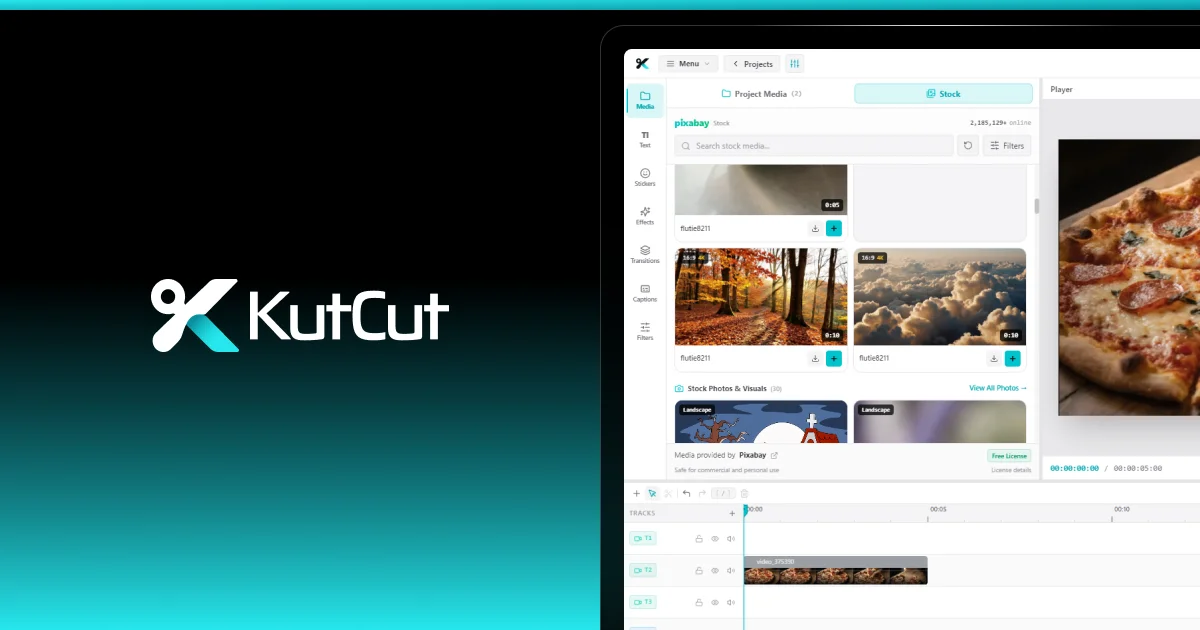
KutCut takes a different approach. It is a desktop-native video editor designed for creators and everyday users, with a free starter tier, multi-track editing, GPU-accelerated rendering, captions, color grading, masking, effects, transitions, and keyframe animation. Core exports have zero branding watermarks.
What Is a Free Video Editor for Mac?#
A free video editor for Mac is software that lets you import, edit, enhance, and export video on macOS without requiring an upfront purchase.
But "free" can mean very different things.
Some applications limit export quality. Others place watermarks on videos, restrict useful features, or require a paid subscription for tools that creators regularly need.
When choosing a free Mac video editor, look beyond the word "free."
A useful editor should give you a practical workflow for:
- Cutting and trimming footage
- Combining multiple video clips
- Editing multiple audio layers
- Adding captions and subtitles
- Creating text overlays
- Applying transitions and effects
- Adjusting colors
- Animating elements
- Exporting finished videos without unwanted branding
That's the difference between a free editor you can actually use and a free trial that happens to have an export button.
Why Choose a Desktop-Native Video Editor on Mac?#
Mac users already have capable hardware for video production, particularly on newer Apple Silicon machines.
A desktop-native application can take advantage of the computer's local processing capabilities instead of depending entirely on a browser or cloud workflow.
KutCut is built as a native desktop application and runs locally on your hardware. Its macOS version supports macOS 12 Monterey or later and is available as a Universal application for Apple Silicon and Intel-based Macs.
For Apple Silicon users, KutCut provides a native binary designed to run without Rosetta emulation overhead. It also uses Apple VideoToolbox and Metal technologies for hardware-accelerated video workflows.
That makes the application particularly interesting for Mac users who want a dedicated editing environment rather than a browser-based editor.
Key Features to Look for in a Free Mac Video Editor#
1. Multi-Track Video Editing
Simple editors can be enough for cutting a single clip.
But as soon as your project includes B-roll, background music, voiceover, captions, graphics, and multiple layers, a single-track workflow becomes limiting.
KutCut provides an unlimited non-linear multi-track timeline for video, audio, text, stickers, and captions. Its magnetic timeline also supports ripple editing, automatic gap closure, clip grouping, track locking, and precise timeline control.
This gives you room to build more complex projects without constantly flattening your work.
2. Fast Mac Rendering
Video editing involves processing large amounts of data, particularly when working with high-resolution footage.
KutCut's Mac version uses Apple's VideoToolbox and Metal technologies for hardware-accelerated workflows. The editor is designed around high-performance 4K and 60 FPS workflows.
The practical benefit is simple: your editing application should make effective use of the hardware already inside your Mac.
3. Apple Silicon and Intel Mac Support
Not every Mac user has the same hardware.
Some creators use newer Apple Silicon Macs, while others continue working on Intel-based systems.
KutCut supports both through its Universal macOS release. The current website lists support for macOS 12 Monterey or later, with separate download options for Apple Silicon and Intel-based Macs.
Before installing any Mac video editor, always check its operating-system and hardware requirements.
4. No Branding Watermark on Core Exports
A watermark can make an otherwise finished video look unfinished.
This is particularly frustrating when the editor is advertised as free but adds its own branding to the final export.
KutCut's website states that its core exports have zero branding watermarks, while its free starter tier provides core editing capabilities without requiring a mandatory subscription.
For creators publishing videos under their own name or brand, this is an important distinction.
5. Auto Captions and Subtitles
Captions have become an important part of modern video editing.
They're useful for viewers watching without sound, short-form content, educational videos, interviews, tutorials, and accessibility.
KutCut includes Smart Auto Captions with support for multiple languages, caption styles, editing, and subtitle-file workflows including SRT and VTT.
You can create captions as part of the editing process instead of moving the project into another application just to add subtitles.
6. Color Grading and Filters
Raw footage doesn't always have the look you want.
Color correction can help balance footage, while creative grading and filters can establish a consistent visual style.
KutCut includes color grading and filter tools, including custom color correction and LUT workflows.
This is useful for creators who want their videos to look more polished without building a complicated professional color-grading workflow.
7. Masking and Cutout Tools
More advanced edits often require isolating part of an image or video.
Masking can be useful for:
- Highlighting subjects
- Creating visual effects
- Building picture-in-picture compositions
- Isolating areas of an image
- Creating creative transitions
KutCut includes a Masking & Cutout Studio with multi-layer masks, cutout tools, color grading, and related visual effects.
8. Keyframe Animation
Keyframes give you control over how an element changes over time.
You can animate properties such as:
- Position
- Scale
- Rotation
- Opacity
KutCut includes frame-accurate keyframe animation for these properties, making it possible to create movement without requiring a separate motion-graphics application.
What Can You Make With a Free Video Editor on Mac?#
A good Mac video editor shouldn't be limited to one type of content.
YouTube Videos
You can combine your main camera footage with B-roll, voiceovers, background music, captions, transitions, and text.
A multi-track timeline makes it easier to keep these elements organized.
Instagram Reels and YouTube Shorts
Short-form video requires fast editing and often uses vertical 9:16 framing.
KutCut supports multi-aspect-ratio editing, including vertical 9:16 projects.
This means you can create vertical content without needing to move the project into a separate editor.
Tutorials
Tutorials often combine screen recordings, voiceovers, captions, cursor-focused visuals, and supporting graphics.
Multiple timeline tracks make this type of project much easier to organize.
Product Videos
If you're creating product demonstrations, advertisements, launch videos, or promotional content, you may need a mixture of footage, text, music, transitions, and visual effects.
A desktop editor with multiple tracks gives you the flexibility to combine those elements.
Personal Videos
You don't need to be a professional creator to benefit from a capable video editor.
Travel footage, family videos, event recordings, and personal projects can all benefit from basic trimming, music, transitions, captions, and color adjustments.
How to Edit a Video on Mac With KutCut#
You can approach a typical project with a straightforward workflow.
Step 1: Download KutCut for macOS
Download the current macOS version from the official KutCut website.
KutCut currently lists macOS 12 Monterey or later as the supported operating system, with Universal support for Apple Silicon and Intel Macs.
Step 2: Import Your Footage
Bring your video clips, photos, music, voiceovers, and other assets into the project.
Organizing your media before the main edit can make the rest of the workflow faster.
Step 3: Build Your Timeline
Place your main footage on the timeline.
Trim unwanted sections, rearrange clips, and use additional tracks for B-roll, music, voiceover, captions, and graphics.
Step 4: Add Captions and Text
Add subtitles or automatically generate captions when appropriate.
Then review the captions carefully for timing and transcription accuracy.
You can also add titles and animated text to emphasize important information.
Step 5: Add Transitions and Effects
Use transitions where they help the story move from one scene to another.
You can also add visual effects, stickers, shapes, and other creative elements.
The best editing usually comes from using effects intentionally rather than adding them to every cut.
Step 6: Adjust Color
Correct exposure and color differences between clips before applying a creative look.
If you're working on branded content, maintaining consistent colors across the project can make the final video feel much more professional.
Step 7: Animate Important Elements
Use keyframes when you want text, graphics, or video elements to move.
Small amounts of controlled motion can make an otherwise static edit feel more dynamic.
Step 8: Review and Export
Watch the finished timeline from beginning to end.
Check the cuts, captions, audio, text placement, color, transitions, and final framing before exporting.
Is KutCut Free on Mac?#
KutCut offers a free starter tier with optional Pro upgrades. The company states that there are no mandatory subscriptions for core editing and that core exports have zero branding watermarks.
That makes it possible to start editing without committing to an expensive professional subscription.
As with any software, features and plans can change over time, so check the official KutCut website for the current version and offering before downloading.
Free Mac Video Editor vs. Expensive Professional Software#
A more expensive video editor isn't automatically the best choice for every creator.
Professional production environments may require specialized workflows, extensive third-party integrations, or tools designed for large production teams.
But many Mac users simply want to:
- Edit YouTube videos
- Create Shorts and Reels
- Make tutorials
- Produce marketing videos
- Edit travel footage
- Create social media content
- Add captions
- Improve color
- Combine multiple audio and video layers
For these workflows, a modern desktop-native editor can provide a much more practical balance between capability and simplicity.
The right question isn't:
"What's the most expensive video editor I can install?"
It's:
"Can this editor help me finish my videos efficiently?"
Why KutCut Is Worth Trying on Mac#
KutCut is designed around a simple concept: give creators a capable desktop editing environment without forcing every user into a complicated or expensive workflow.
Its Mac version combines native desktop performance with a multi-track timeline, GPU-accelerated rendering, captions, color grading, masking, effects, transitions, and keyframe animation.
For someone searching specifically for a free video editor for Mac, that makes KutCut an option worth testing with your own footage.
You can start with the free tier and see whether its editing workflow fits the way you create.
Start Editing on Your Mac#
You don't need an expensive subscription just to begin making videos.
If you're looking for a free video editor for Mac that supports modern desktop editing, multi-track timelines, captions, color tools, masking, effects, transitions, keyframe animation, and hardware-accelerated workflows, KutCut is built to give you a capable starting point.
Download KutCut for macOS, bring in your footage, and start turning your ideas into finished videos.


